LM Studio API 配置指南
概述
LM Studio 是本地部署的大模型管理工具,可在本机加载模型并提供 OpenAI 兼容 API 接口。
其特点包括:
- 本地优先推理(数据留在本机)
- OpenAI 兼容接口(可直接接入现有工具)
- 默认无需 API Key
- 提供 GUI 界面进行模型加载和管理
PicoClaw 中的模型标识符映射:
| LM Studio API 标识符 | PicoClaw 模型标识符 | 说明 | 适用场景 |
|---|---|---|---|
openai/gpt-oss-20b | lmstudio/openai/gpt-oss-20b | 来自 LM Studio 右侧面板 | 日常对话与编程任务 |
your-model-id | lmstudio/your-model-id | 任意已加载模型均可使用 | 自定义本地工作流 |
获取 API Key
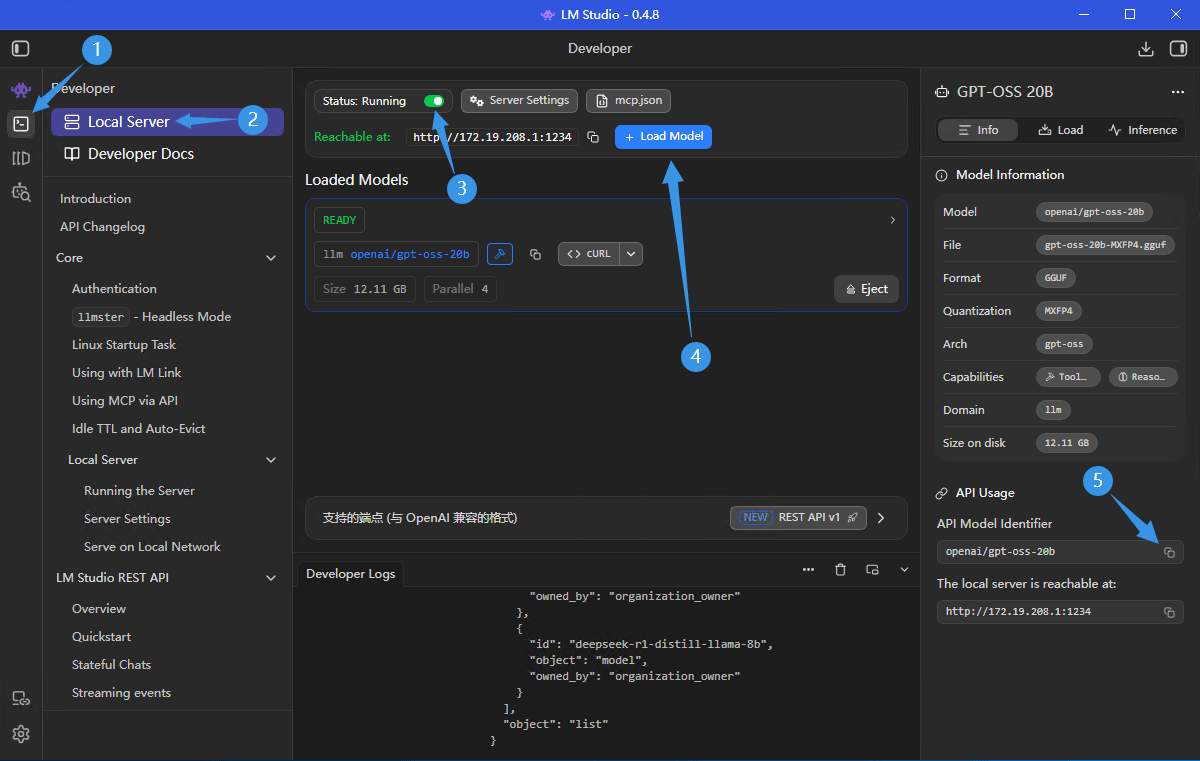
步骤 1:打开 LM Studio 本地服务页面
在 LM Studio 中进入 Developer -> Local Server。
步骤 2:启动服务并加载模型
- 确认 Status 为
Running - 点击 Load Model 并加载要使用的模型
- 确认本地地址(默认:
http://localhost:1234/v1)
步骤 3:复制 API Model Identifier
- 在右侧面板复制 API Model Identifier
- 在 PicoClaw 中按
lmstudio/<identifier>使用
注意:LM Studio 默认不需要 API Key。只有在你开启了服务鉴权时,才需要在 PicoClaw 中填写 API Key。
配置 PicoClaw
方式一:使用 WebUI(推荐)
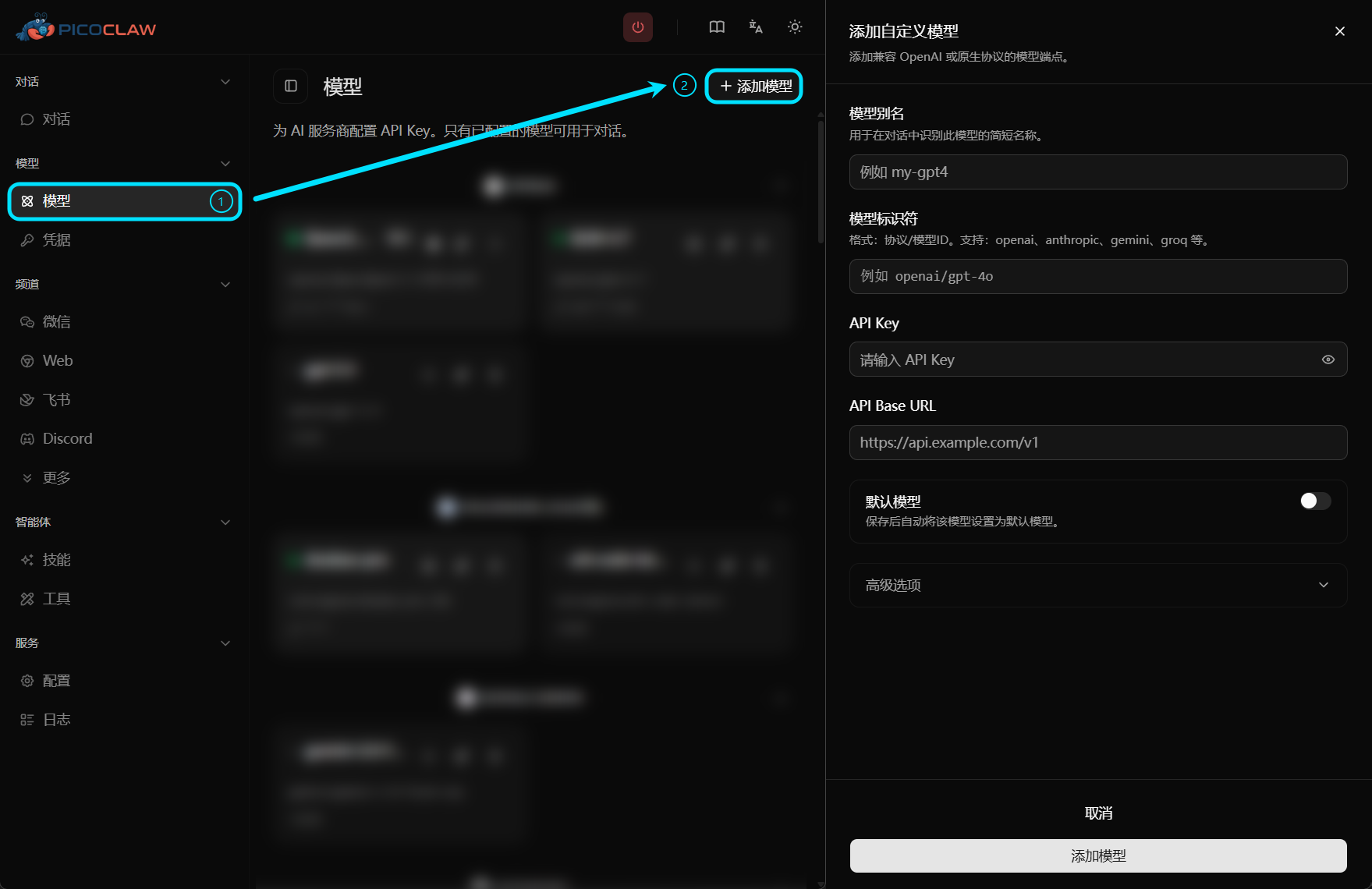
PicoClaw 提供了 WebUI 界面,您可以在 WebUI 中轻松配置模型,无需手动编辑配置文件。
编辑预设设置,或在右上角点击 "添加模型" 按钮进行配置:
| 字段 | 填写内容 |
|---|---|
| 模型别名 | 自定义名称,如 lmstudio-local |
| 模型标识符 | lmstudio/openai/gpt-oss-20b(将后缀替换为你的标识符) |
| API Key | 默认留空(仅在开启鉴权时填写) |
| API Base URL | 留空即可(默认:http://localhost:1234/v1) |
方式二:编辑配置文件
在 config.json 中添加:
{
  "model_list": [
    {
      "model_name": "lmstudio-local",
      "model": "lmstudio/openai/gpt-oss-20b"
    },
    {
      "model_name": "lmstudio-lan",
      "model": "lmstudio/deepseek-r1-distill-llama-8b",
      "api_base": "http://10.20.30.40:1234/v1"
    }
  ],
  "agents": {
    "defaults": {
      "model": "lmstudio-local"
    }
  }
}
PicoClaw 发送请求前会去掉 lmstudio/ 前缀。若未显式设置 api_base,默认使用 http://localhost:1234/v1。
限制与配额
计费方式
LM Studio 本地推理不涉及云端按 Token 计费,成本主要来自本机硬件资源占用。
速率限制
- 吞吐量取决于本机 CPU/GPU 与模型大小
- 模型越大、并行越高,延迟通常越高
- 局域网或远程访问还会受到网络稳定性影响
常见问题
无法连接本地服务
原因:LM Studio 本地服务未运行、端口错误或防火墙限制
解决:
- 确认 Status 为
Running - 检查 LM Studio 中显示的地址与端口
- 确认防火墙/网络策略允许访问
模型不存在
原因:模型未加载,或模型标识符不匹配
解决:
- 先在 LM Studio 中加载模型
- 重新复制 API Model Identifier,并使用
lmstudio/<identifier>
401 Unauthorized
原因:LM Studio 开启了鉴权,但 PicoClaw 未提供 Token
解决:
- 在 PicoClaw 模型配置中填写 API Key