LM Studio API Configuration Guide
Overview
LM Studio is a local LLM model manager that runs models on your machine and exposes an OpenAI-compatible API.
Key features:
- Local-first inference (data stays on your machine)
- OpenAI-compatible interface (easy integration with existing tools)
- No API key required by default
- Built-in GUI for loading and managing local models
Model identifier mapping in PicoClaw:
| LM Studio API Identifier | PicoClaw Model Identifier | Notes | Use Cases |
|---|---|---|---|
openai/gpt-oss-20b | lmstudio/openai/gpt-oss-20b | From LM Studio right-side panel | Daily conversations and coding |
your-model-id | lmstudio/your-model-id | Works with any loaded model | Custom local workflows |
Getting API Key
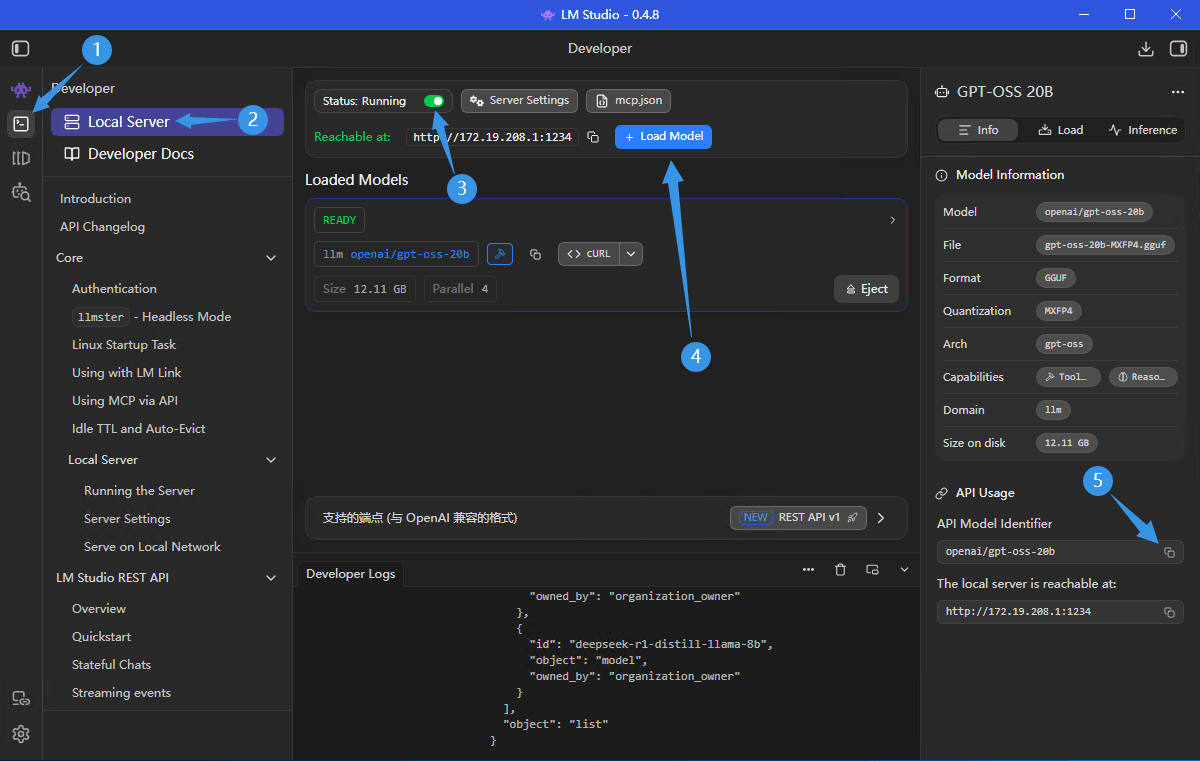
Step 1: Open LM Studio Local Server
In LM Studio, go to Developer -> Local Server.
Step 2: Start Server and Load Model
- Ensure Status is
Running - Click Load Model and load the model you want to use
- Confirm the local endpoint (default:
http://localhost:1234/v1)
Step 3: Copy API Model Identifier
- Copy API Model Identifier from the right panel
- Use it in PicoClaw as
lmstudio/<identifier>
Note: LM Studio does not require API Key by default. Only set API Key in PicoClaw if your LM Studio server has authentication enabled.
Configuring PicoClaw
Option 1: Using WebUI (Recommended)
PicoClaw provides a WebUI interface where you can easily configure models without manually editing configuration files.
Edit preset settings, or click the "Add Model" button in the top right corner:
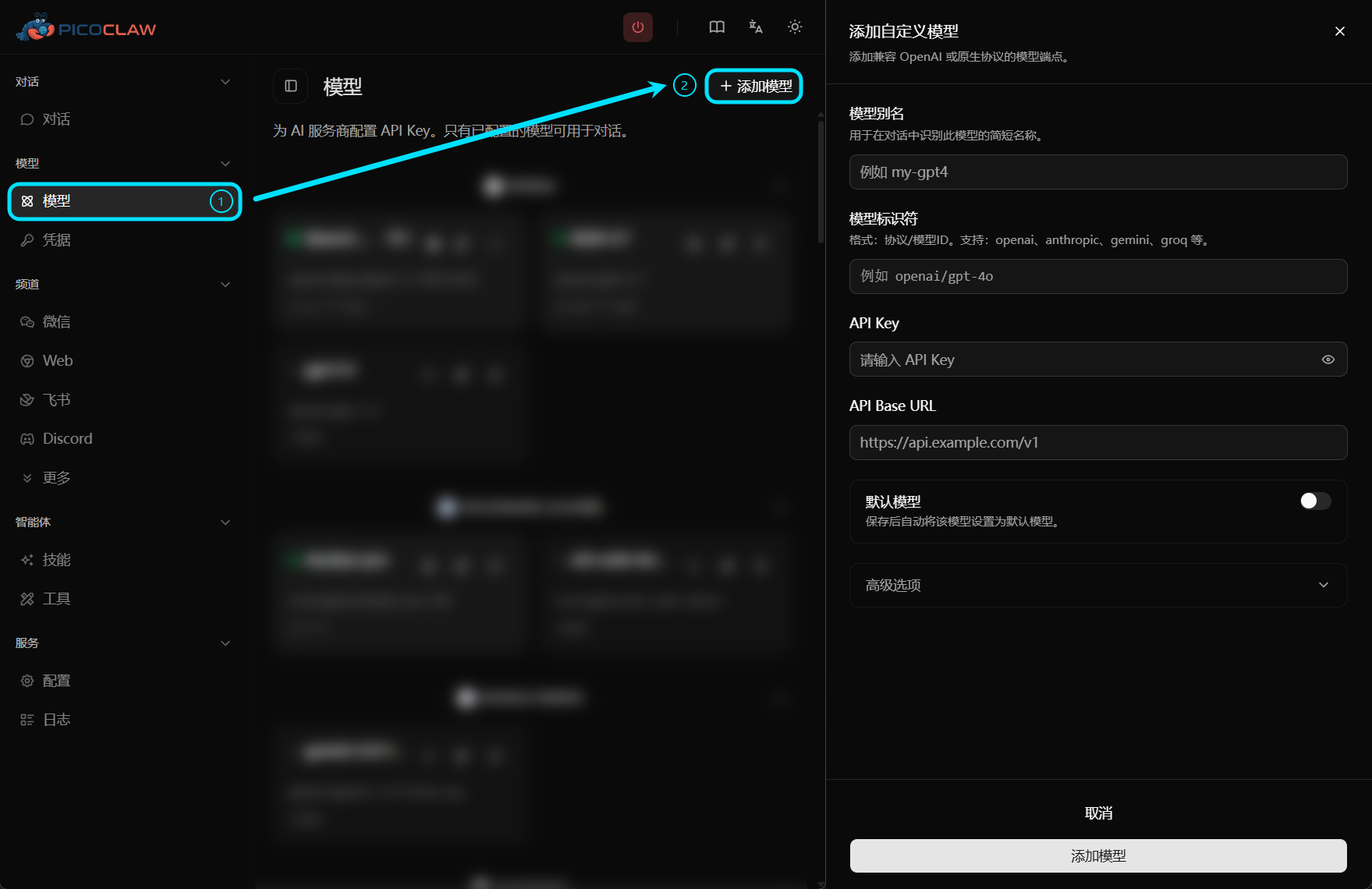
| Field | Value |
|---|---|
| Model Alias | Custom name, e.g., lmstudio-local |
| Model Identifier | lmstudio/openai/gpt-oss-20b (replace suffix with your identifier) |
| API Key | Leave empty by default (only needed when auth is enabled) |
| API Base URL | Leave empty (default: http://localhost:1234/v1) |
Option 2: Edit Configuration File
Add in config.json:
{
  "model_list": [
    {
      "model_name": "lmstudio-local",
      "model": "lmstudio/openai/gpt-oss-20b"
    },
    {
      "model_name": "lmstudio-lan",
      "model": "lmstudio/deepseek-r1-distill-llama-8b",
      "api_base": "http://10.20.30.40:1234/v1"
    }
  ],
  "agents": {
    "defaults": {
      "model": "lmstudio-local"
    }
  }
}
PicoClaw strips the lmstudio/ prefix before sending requests. If api_base is not set, it defaults to http://localhost:1234/v1.
Limits & Quotas
Billing
LM Studio local inference does not have per-token cloud billing. Costs mainly come from your local hardware usage.
Rate Limits
- Throughput depends on your CPU/GPU and model size
- Larger models or higher parallel settings increase latency
- LAN/remote access also depends on network stability
Common Issues
Cannot Connect to Local Server
Cause: LM Studio local server is not running, wrong port, or firewall restrictions
Solutions:
- Verify Status is
Running - Check endpoint and port in LM Studio
- Ensure local firewall/network policy allows access
Model Not Found
Cause: Model is not loaded, or model identifier mismatch
Solutions:
- Load the model in LM Studio first
- Re-copy API Model Identifier and use
lmstudio/<identifier>
401 Unauthorized
Cause: LM Studio authentication is enabled, but no token is provided
Solution:
- Set API Key in PicoClaw model configuration