Gemini API Configuration Guide
Overview
Gemini API is Google's AI interface provided through Google AI Studio. Compared to Google Cloud's Vertex AI, AI Studio offers a simpler API Key authentication method, ideal for rapid development and personal integration.
Gemini offers multiple model series for different performance and cost scenarios:
| Model | Features | Use Cases |
|---|---|---|
| gemini-2.0-flash | Fast, low cost | High concurrency, daily conversations |
| gemini-1.5-pro | High-quality multimodal | Complex tasks, long context understanding |
| gemini-1.5-flash | Balanced performance & cost | General use cases |
Getting API Key
Step 1: Visit Google AI Studio
Go to Google AI Studio and log in with your Google account.
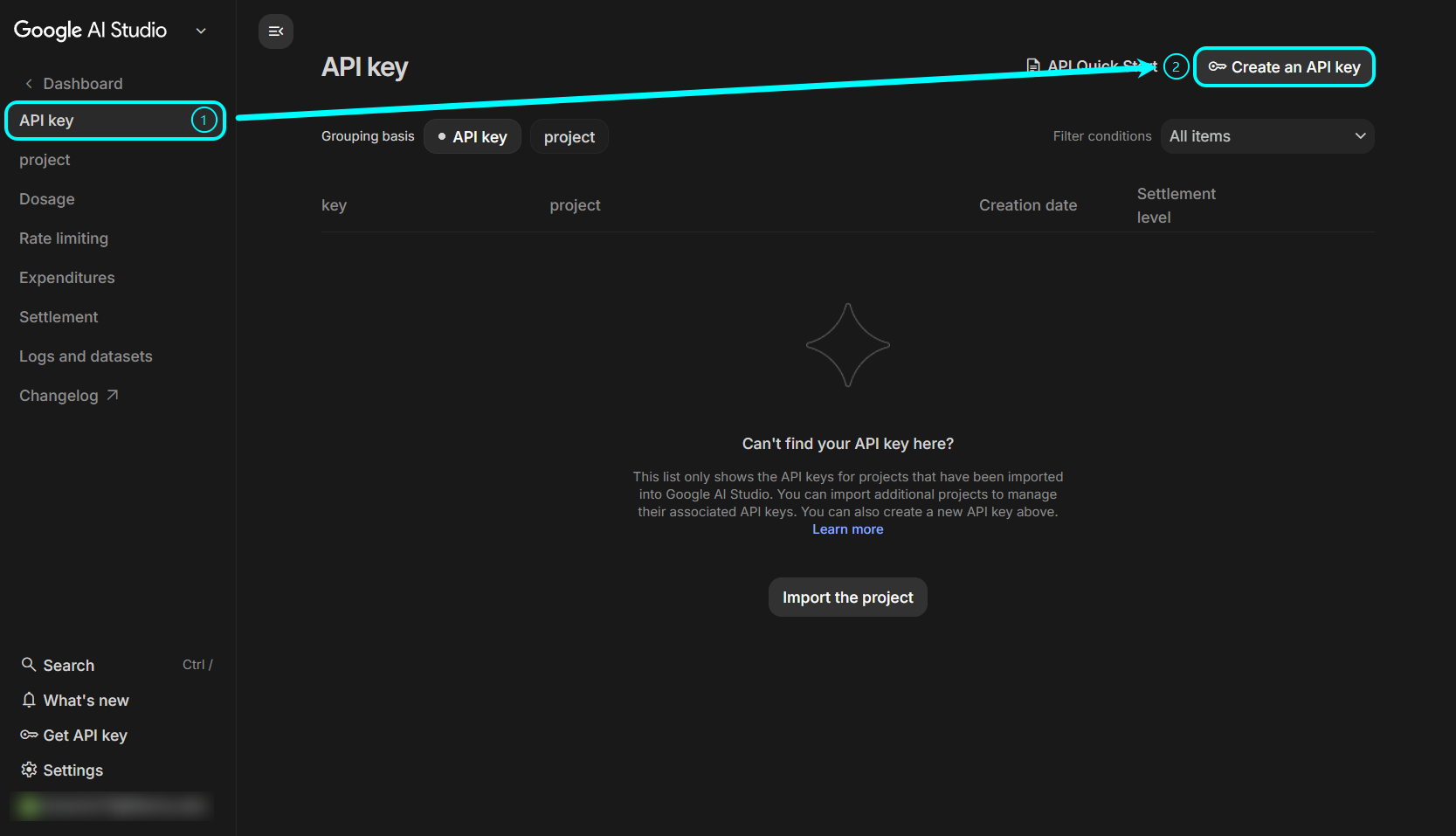
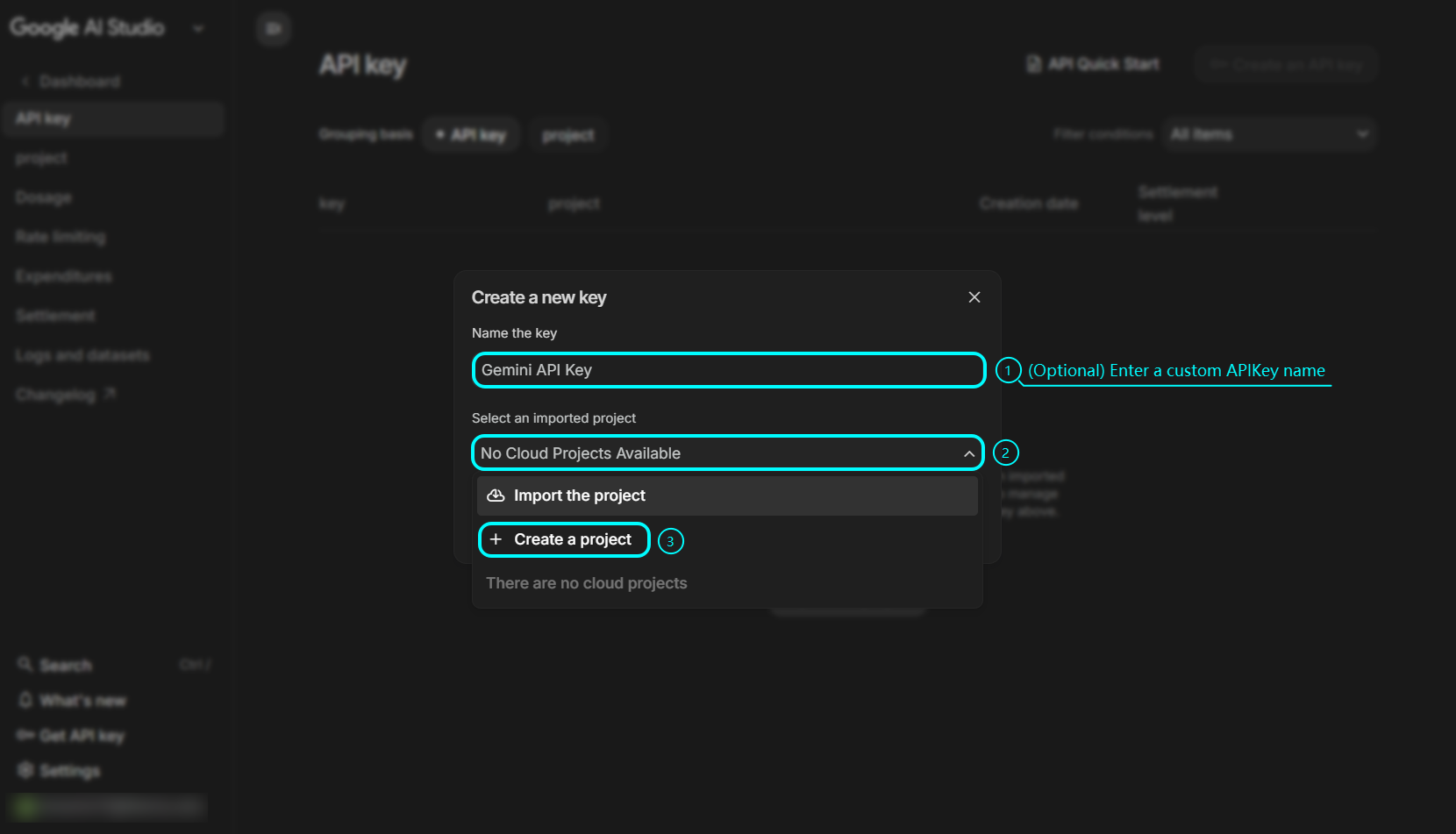
Step 2: Generate API Key
- Click "Get API key" in the left navigation bar
- Click "Create API key in new project" (or select an existing Google Cloud project)
- Copy and save your API Key
⚠️ Note: Keep your API Key secure and do not expose it in public code repositories.
Configuring PicoClaw
Option 1: Using WebUI (Recommended)
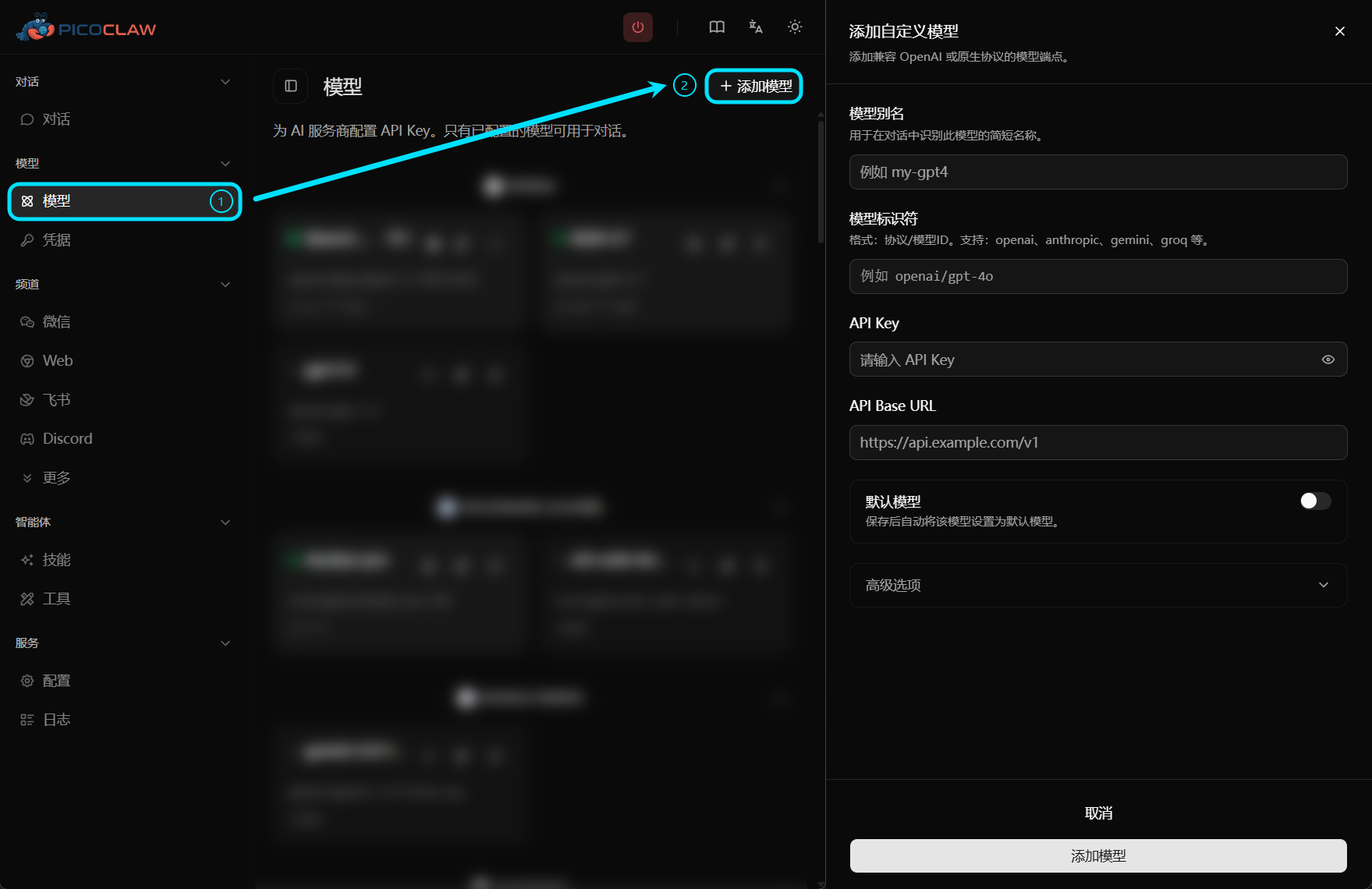
PicoClaw provides a WebUI interface where you can easily configure models without manually editing configuration files.
Edit preset settings, or click the "Add Model" button in the top right corner:
| Field | Value |
|---|---|
| Model Alias | Custom name, e.g., gemini-flash |
| Model Identifier | google/gemini-2.0-flash (or other supported models) |
| API Key | Google AI Studio API Key |
| API Base URL | Leave empty (uses default) |
Option 2: Edit Configuration File
Add Gemini models in config.json and set auth_method to api_key:
{
  "model_list": [
    {
      "model_name": "gemini-flash",
      "model": "google/gemini-2.0-flash",
      "auth_method": "api_key",
      "api_key": "YOUR_GEMINI_API_KEY_HERE"
    },
    {
      "model_name": "gemini-pro",
      "model": "google/gemini-1.5-pro",
      "auth_method": "api_key",
      "api_key": "YOUR_GEMINI_API_KEY_HERE"
    }
  ],
  "agents": {
    "defaults": {
      "model": "gemini-flash"
    }
  }
}
Limits & Quotas
Free Tier
Google AI Studio offers a free tier for developers:
- Free Quota: Daily free request allowance
- Rate Limits: Requests per minute (RPM) limits on free tier
- Data Privacy: On free tier, Google may use input/output data to improve models
Paid Tier
For higher quotas or enterprise-level privacy protection, upgrade to paid tier or use Google Cloud Vertex AI.
Common Issues
Invalid API Key
Cause: API Key expired or revoked
Solution: Regenerate API Key in Google AI Studio
Request Timeout
Cause: Network issues or too many requests
Solutions:
- Check network connection
- Reduce request frequency
- Use proxy if needed
Model Unavailable
Cause: Some models are not available in certain regions
Solutions:
- Check if the model is supported in your region
- Try using other Gemini models