Deploy on macOS
This document guides you through deploying PicoClaw on a macOS system.
Installation
Download the Package
- Visit the PicoClaw website and download the macOS package.
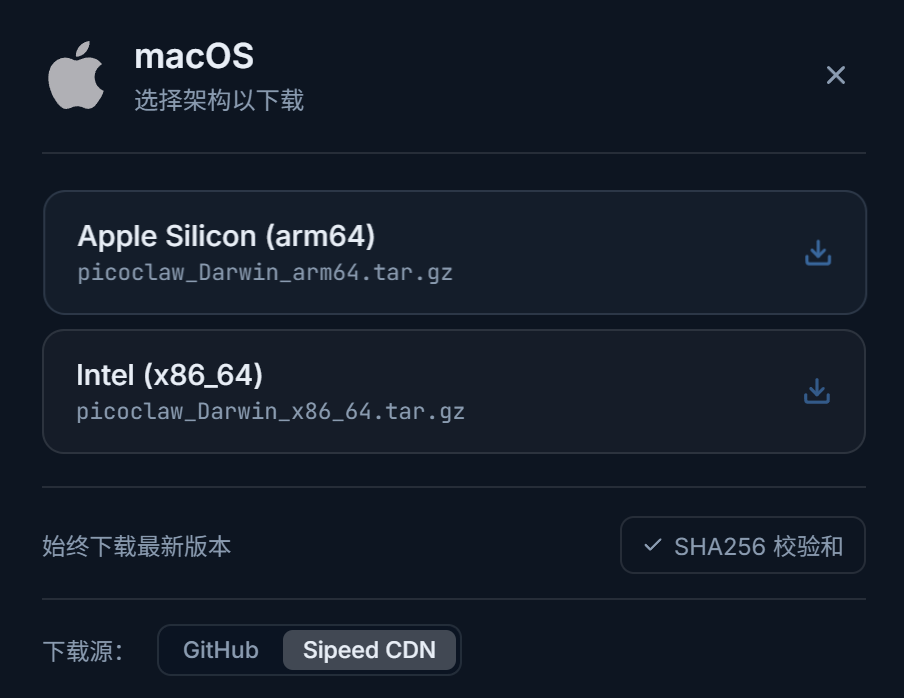
- Extract the downloaded archive.
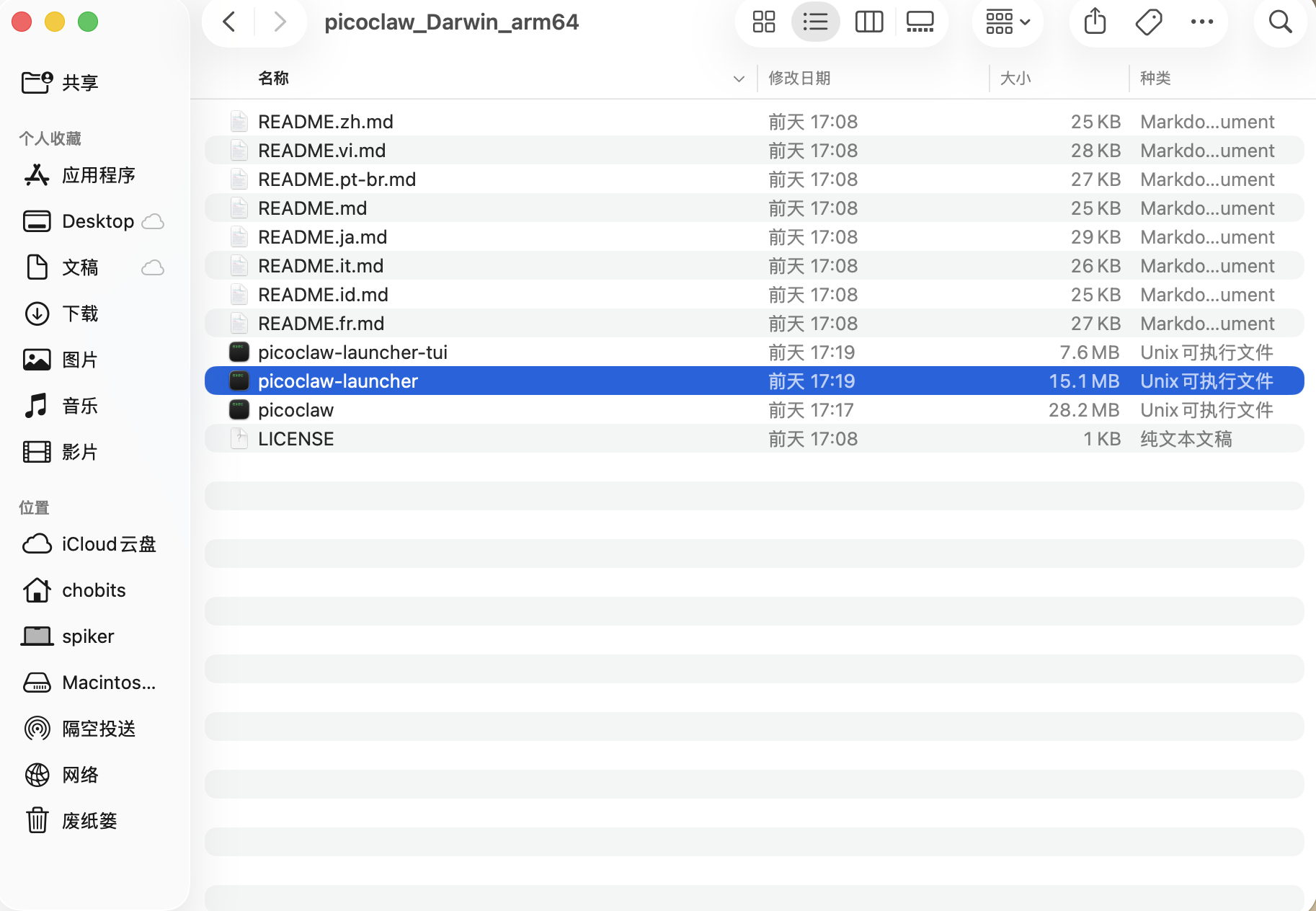
Start PicoClaw
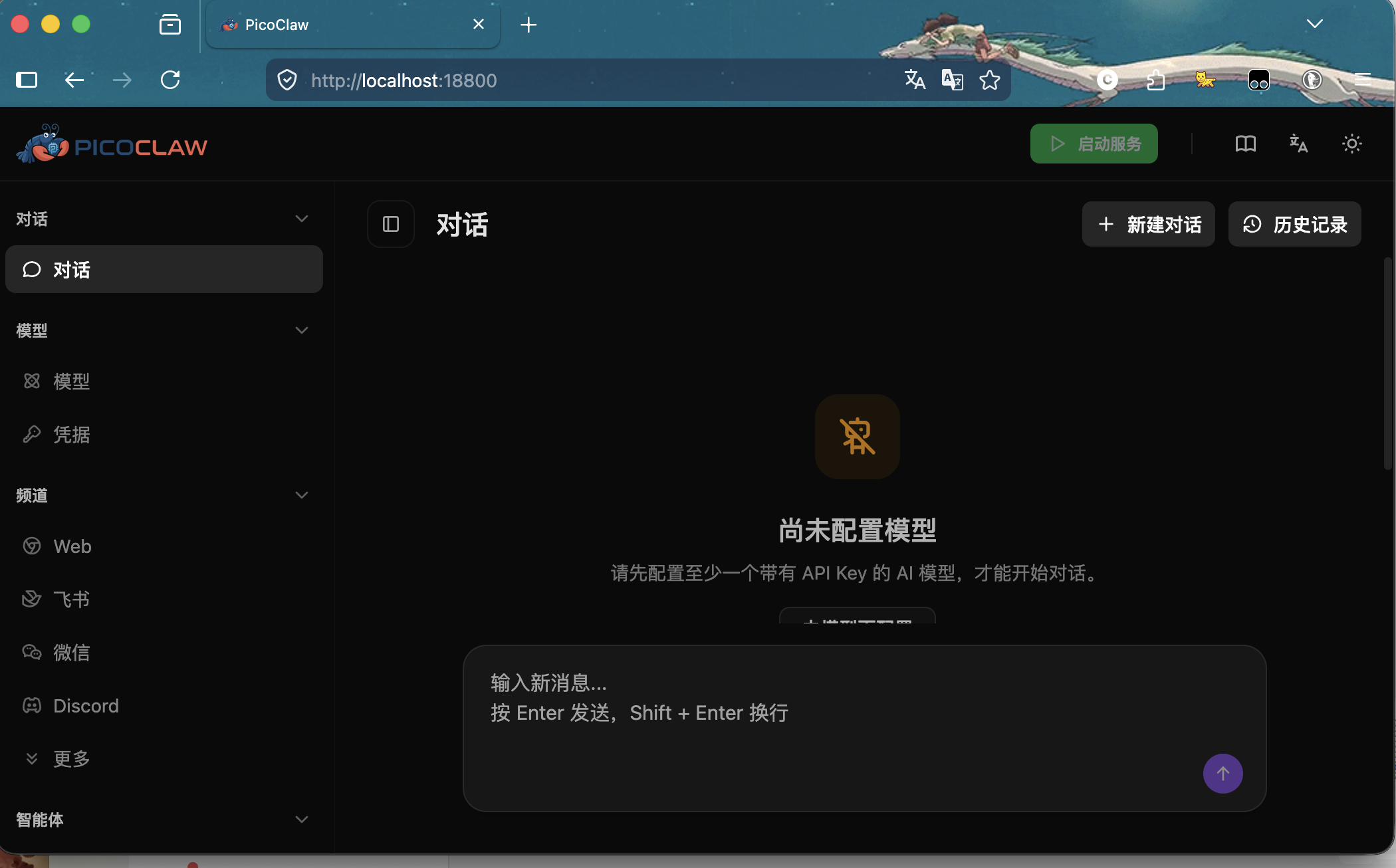
After extracting the archive, launch PicoClaw by double-clicking picoclaw-launcher.
Once the service starts, it will automatically open your browser. If the browser does not open, navigate to the following address to access the PicoClaw Web UI:
http://localhost:18800
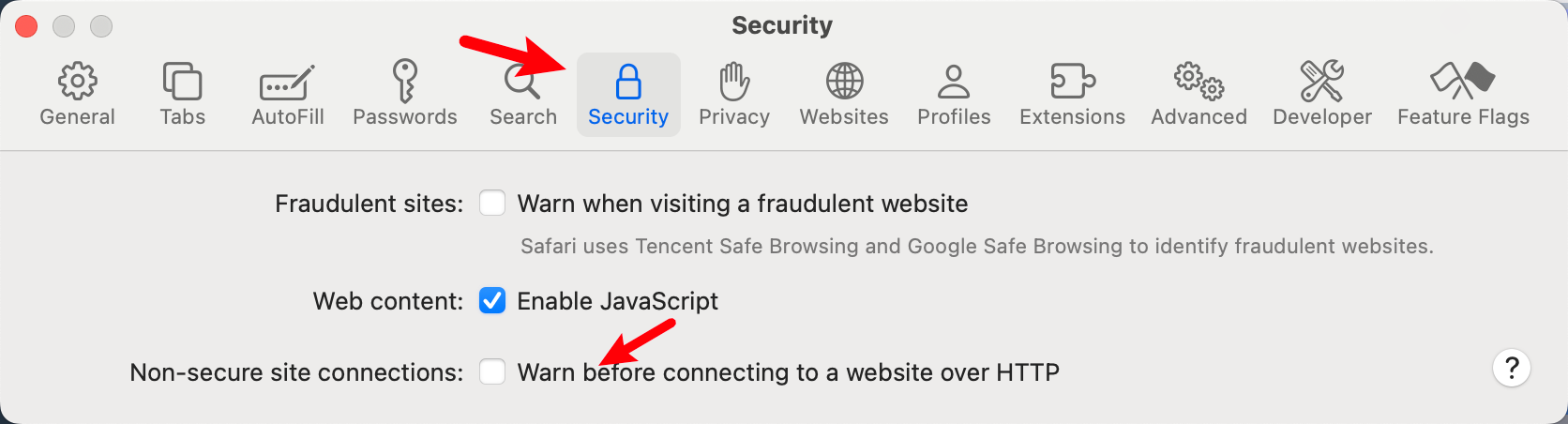
- Note: Safari may block HTTP links. You can resolve this by going to Safari Preferences → Security → and unchecking "Warn before connecting to a website over HTTP".
macOS — First Launch Security Warning
macOS may block picoclaw-launcher on first launch because it was downloaded from the internet and is not notarized by the Mac App Store.
Step 1: Double-click picoclaw-launcher. A security warning will appear:
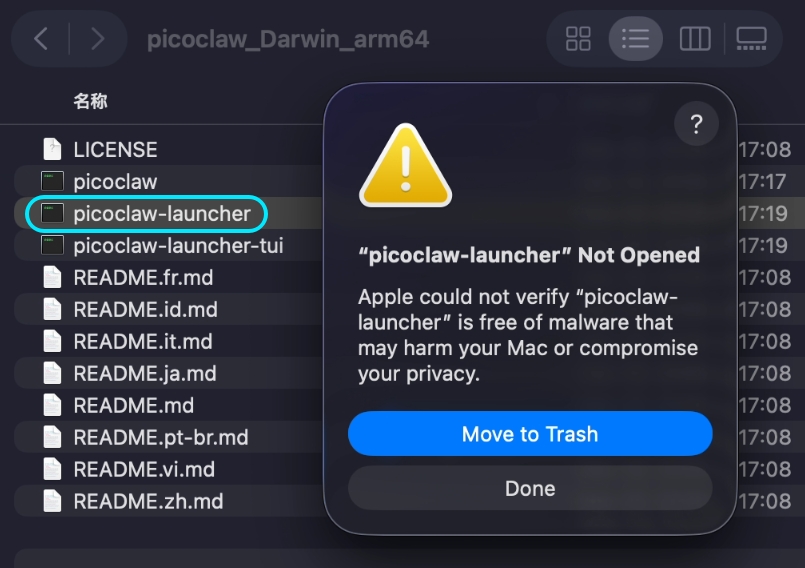
"picoclaw-launcher" cannot be opened — Apple cannot verify that "picoclaw-launcher" is free of malware that may harm your Mac or compromise your privacy.
Step 2: Open System Settings → Privacy & Security → Scroll down to the Security section → Click Open Anyway → Click Open again in the confirmation dialog.
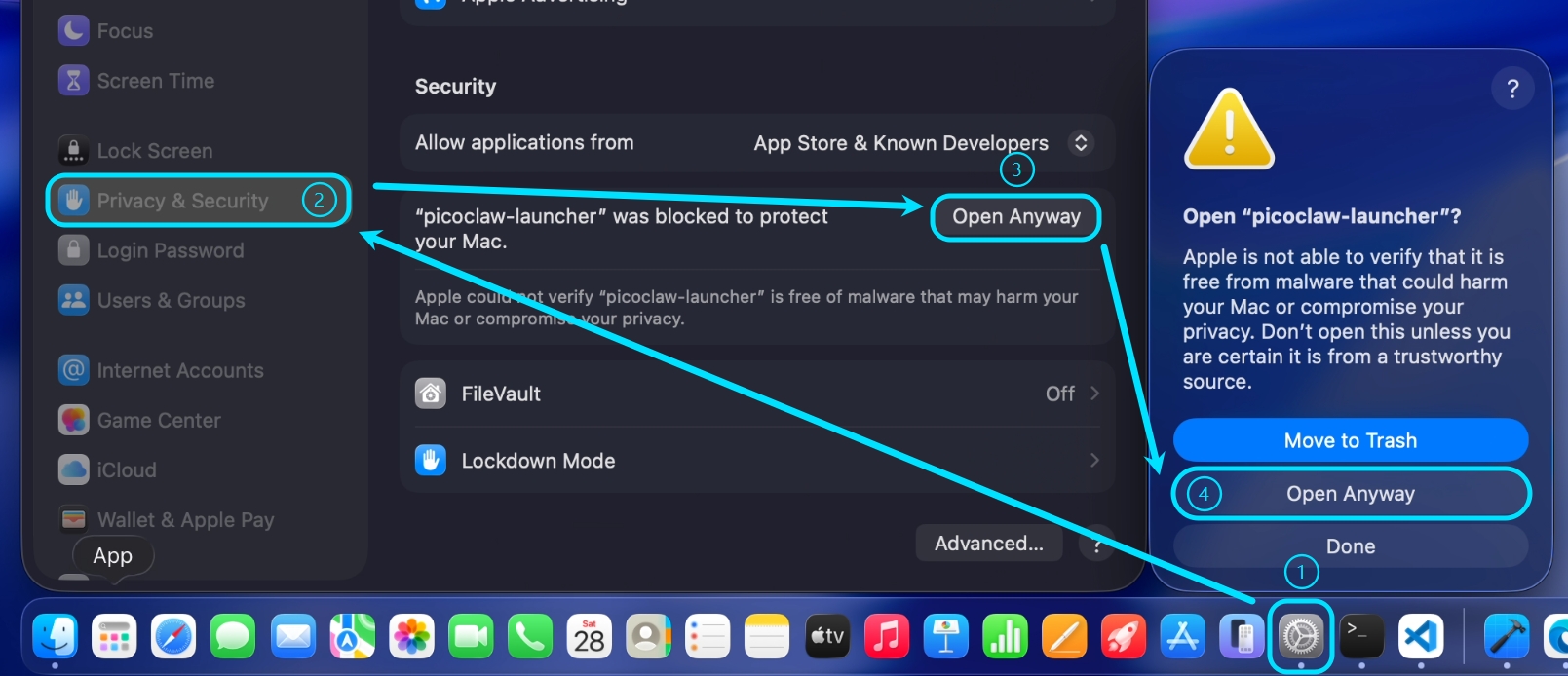
After completing this operation, launching picoclaw-launcher will no longer show the warning in the future.